Plan your facility, test different layouts and see how many padel courts can fit in your available space before you invest.
A fast and practical way to plan your padel facility. Use standard court dimensions (20 × 10 m) to explore how many courts fit your available space, and add supporting areas such as reception, changing rooms, storage, offices and social zones before moving into technical development.
STEP 1: Select your metric system (metric or imperial). By default it’s metric.
Metric system: 1 square = 1 x 1 m / Imperial system: 1 square = 5 x 5 ft
02
Enter the site dimensions
STEP 2: Enter your area dimensions you are planning to install the Padel Courts.
03
Add courts and other objects
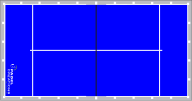
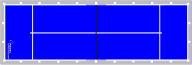
STEP 3: Directly under the area “Area dimensions” you can see the graphic of a padel court in the normal size of 20 x 10 m and in the size 20 x 6 m, as well as the non-moving objects in red. You can drag all of these objects into the area by moving your mouse over the object and dragging them into the area while holding down the right mouse button. At this point you start with the size-adjustable objects, such as pillars, corners, social area, shop, changing rooms, offices, reception, etc. The padel courts have a fixed size and cannot be adjusted in size.
04
Move, rotate, arrange and label objects
STEP 4: DRAG, DROP, CLICK, MOVE, ROTATE and TAG by using the buttons -5º, +5º or +90º the Padel Courts to the position you like.
To be able to move the object, the object must first be clicked. It gets a red frame. You can rotate the object in -5º, +5º or +90º intervals. Place the padel courts in the desired position. You can add as many padel courts as you want. The number of padel courts then also depends on the available space. Tag every object by adding a short description.
05
Submit through the Padel Court Configurator
STEP 5: Add your layout in our Padel Court Configurator to complete your quoting request. This will help us to do our magic.
06
Save or export your work
STEP 6: SAVE YOUR WORK SO YOU CAN CONTINUE NEXT DAY.
SAVE IMAGE AS PNG: You can download your new floor plan drawing as an image file (PNG). SAVE FILE: You can download your floor plan drawing as a data file. LOAD FILE: You can upload your floor plan drawing again and continue working on your project.
01
Your first move
Select the padel court in the middle of the workspace below to move it into position.